Using the Grok dashboard? Open Add MCP server. Set Name to
Zas, Transport to HTTP, URL to https://zas.red/mcp, and OAuth client ID to zas-grok-web. Leave HTTP headers and OAuth client secret empty. Select Add server, then follow the sign-in prompt and choose your channels in Zas. The steps below show the separate Grok web form.1
Add a custom connector
In Grok Connect Apps, select Add a custom connector.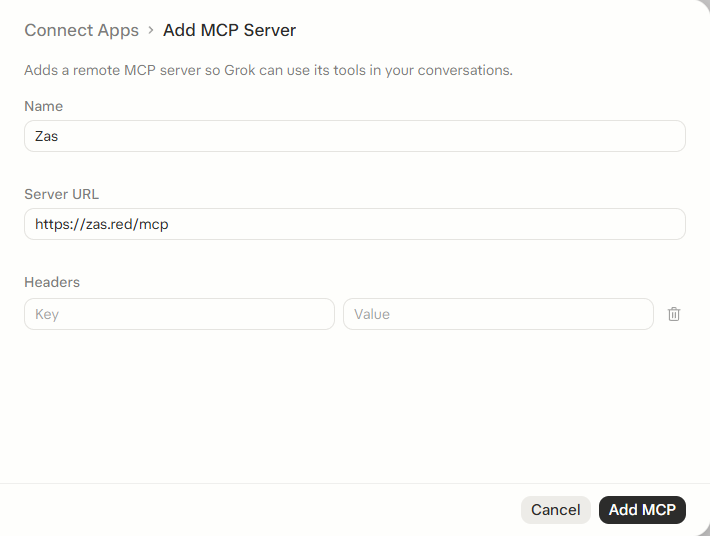
Select Add MCP. A managed workspace may require administrator approval first.
2
Configure OAuth
When OAuth Credentials Required appears, use: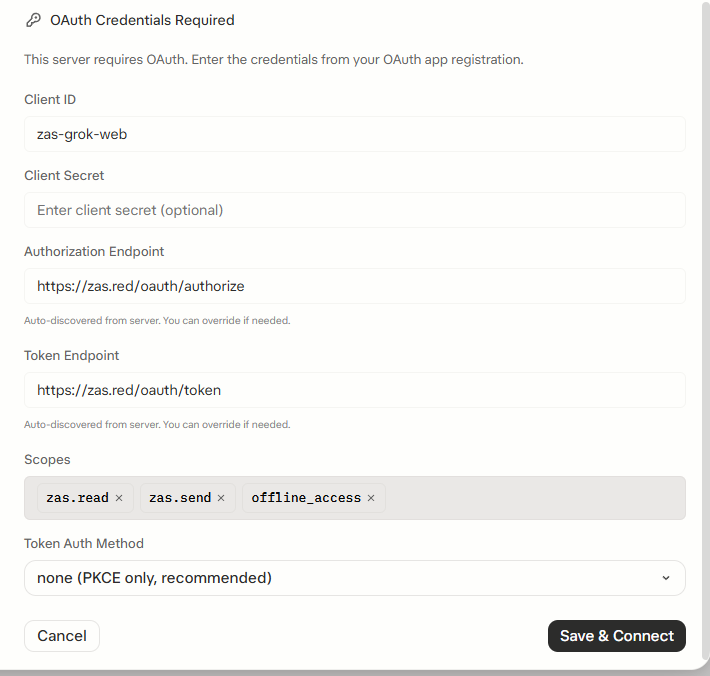
Grok discovers the endpoints and scopes automatically. Select Save & Connect.
3
Choose channels in Zas
Sign in to your registered Zas account and check the account shown. Choose Read, Send, or both for each channel. Original-file sends need both permissions. Organization channels also need admin approval.Review the confirmations and approve the connection. This approval lets Grok renew access until the connection expires or you disconnect it.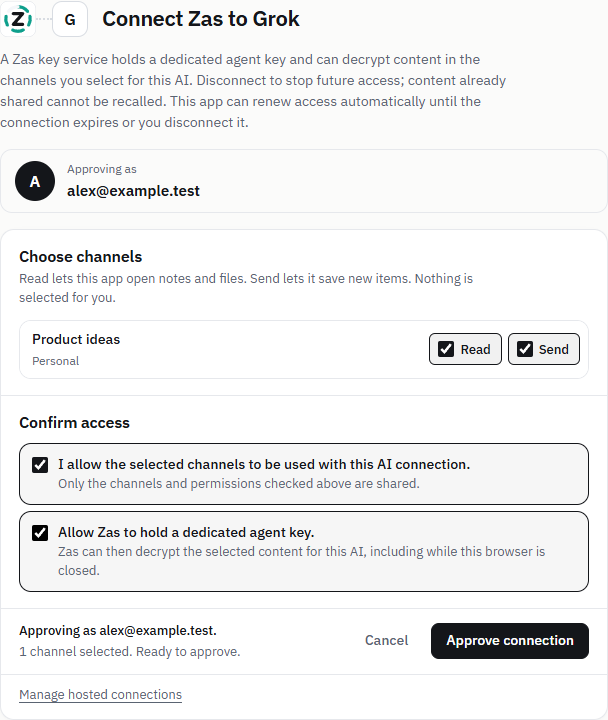
4
Try Zas in a conversation
Open a new Grok chat and ask:
Use Zas to list my approved channels and their permissions. Read the latest note in my test channel.To test sending, choose a channel with Send permission:
Save a note titled “Grok connection test” in my test channel: “Connected from Grok.”Open Zas and verify the saved note. An item ID confirms delivery.
Files and permissions
Grok uses the same hosted connector and file limits as the other assistants. It receives 13 tools; the two ChatGPT attachment tools are omitted because they require ChatGPT file references. Images and PDF pages were readable in the Grok web test. Audio data arrived, but Grok could not interpret it in that conversation. A video download link does not mean Grok watched the video; media interpretation depends on the host. For generated files, Grok must supply the original bytes through the inline or prepared-upload tools. If its environment cannot upload a file, save a note or upload the original in Zas. A filename or download URL alone does not send the file. When a file cannot be read in the conversation, use the item’s Open in Zas link. See file limits and recovery.Grok Bot
Grok Bot in the browser can use this same connection. Listing channels, saving a note, and reading it back have been verified in browser Bot mode. The separate native Grok Bot app has not been tested with Zas. Some Grok Bot sign-ins return throughhttps://www.cursor.com/agents/mcp/oauth/callback. Zas accepts that exact callback as well as Grok web’s https://grok.com/connectors-oauth-exchange-code/. Use the same Client ID, zas-grok-web, with Client Secret empty and none (PKCE only).
If a previous connection attempt stopped at invalid_request before showing the Zas consent page, start Connect again in Grok to create a fresh sign-in request. Do not reuse the old authorization link or add a client secret. If it still fails, send Zas support the time, HTTP status and trace ID, without tokens or cookies.
Manage or disconnect Grok · Privacy and permissions · Use your channels